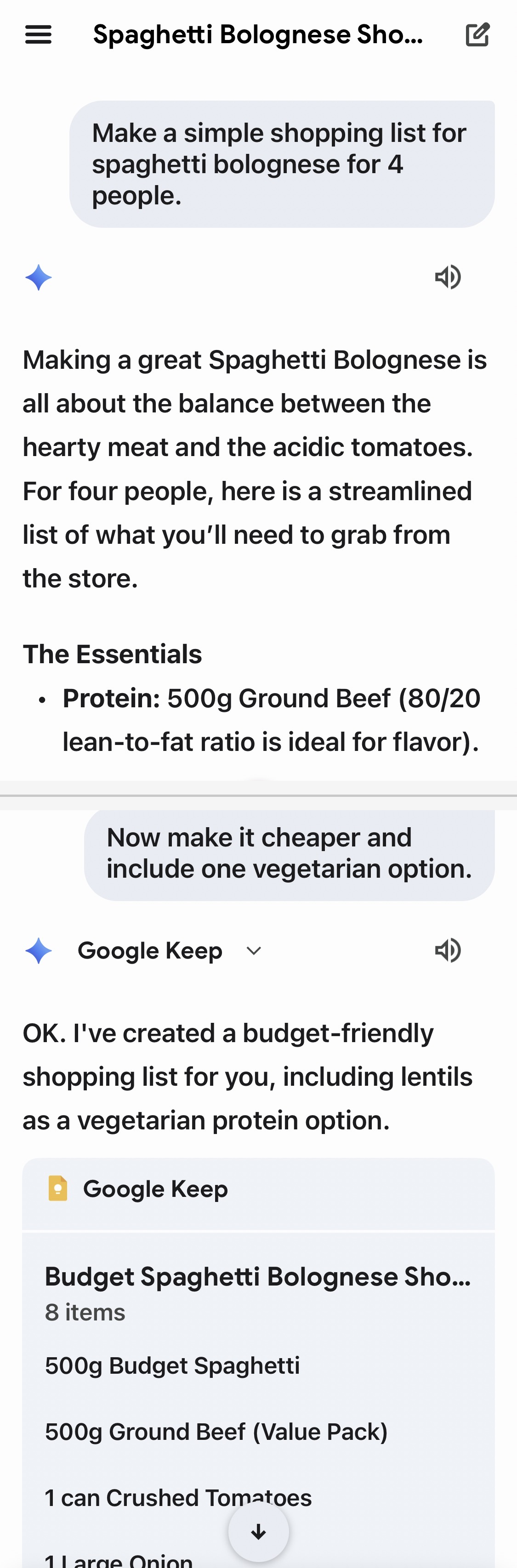
Module 4: Gemini step-by-step (beginner friendly)
Gemini is Google's everyday AI assistant. Like ChatGPT, you can ask questions, draft messages, and get help explaining things. In this module we focus on practical everyday use, not technical features.
4.1 What you need
- An internet connection
- A phone, tablet, or computer
- A personal Google Account to sign in
4.2 Opening Gemini
- On a phone/tablet: open the Gemini app (or Gemini inside the Google app, depending on your device).
- On a computer: open your web browser and sign in to Gemini.
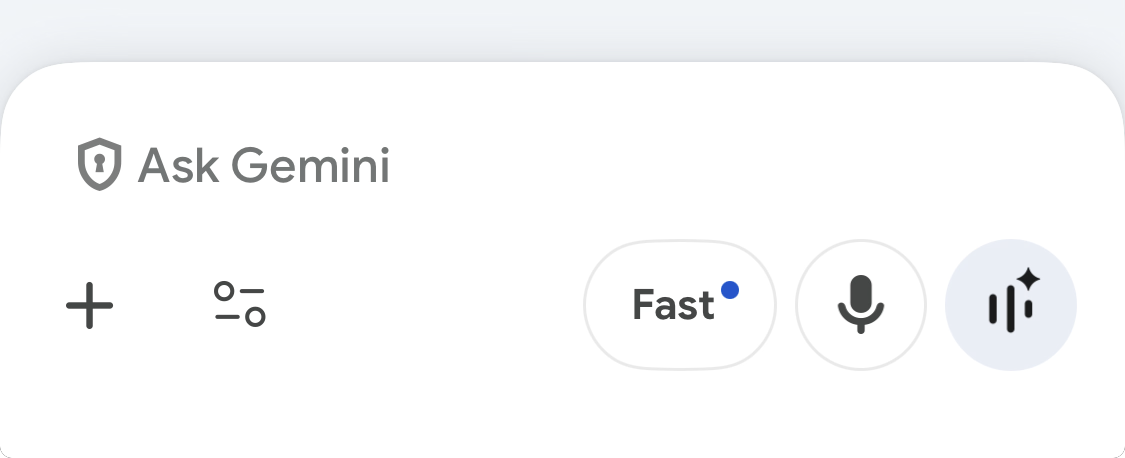
4.3 Start a new chat
Gemini works best when you treat each topic like its own conversation.
- Open Gemini.
- Tap New chat (or the equivalent).
- Type your request in the message box.
- Send it.
4.4 Your first message (a safe starter)
I am new to AI. Give me 10 ways you can help in everyday life. Use simple language and dot points.Follow-up prompt:
Pick the best 3 for a beginner and give me an example request I can copy and paste for each one.4.5 Talking instead of typing: Gemini Live
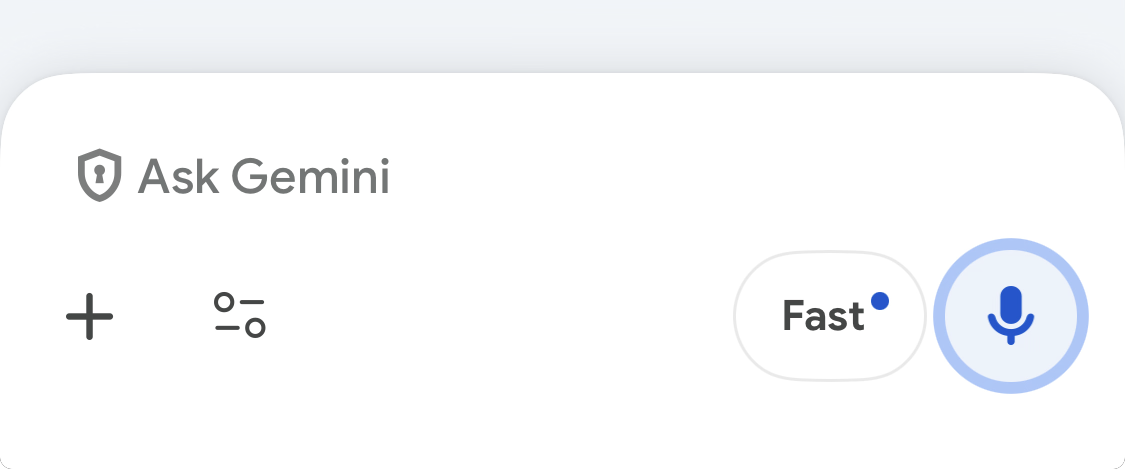
Gemini offers a voice experience called Gemini Live. It is designed for natural back-and-forth conversation, like talking it out.
- Look for a microphone or Live option.
- Start speaking normally.
- If you need to correct yourself, just say so and continue.
4.6 Uploading a photo or file
Like ChatGPT, Gemini can often work with uploaded images and files. It can be useful for:
- Summarising a letter (after removing personal details)
- Explaining a screenshot of a confusing setting
- Turning notes into a cleaner message or checklist
Please read this and explain it in plain English. Then list any deadlines or actions. If anything is unclear, list questions I should ask.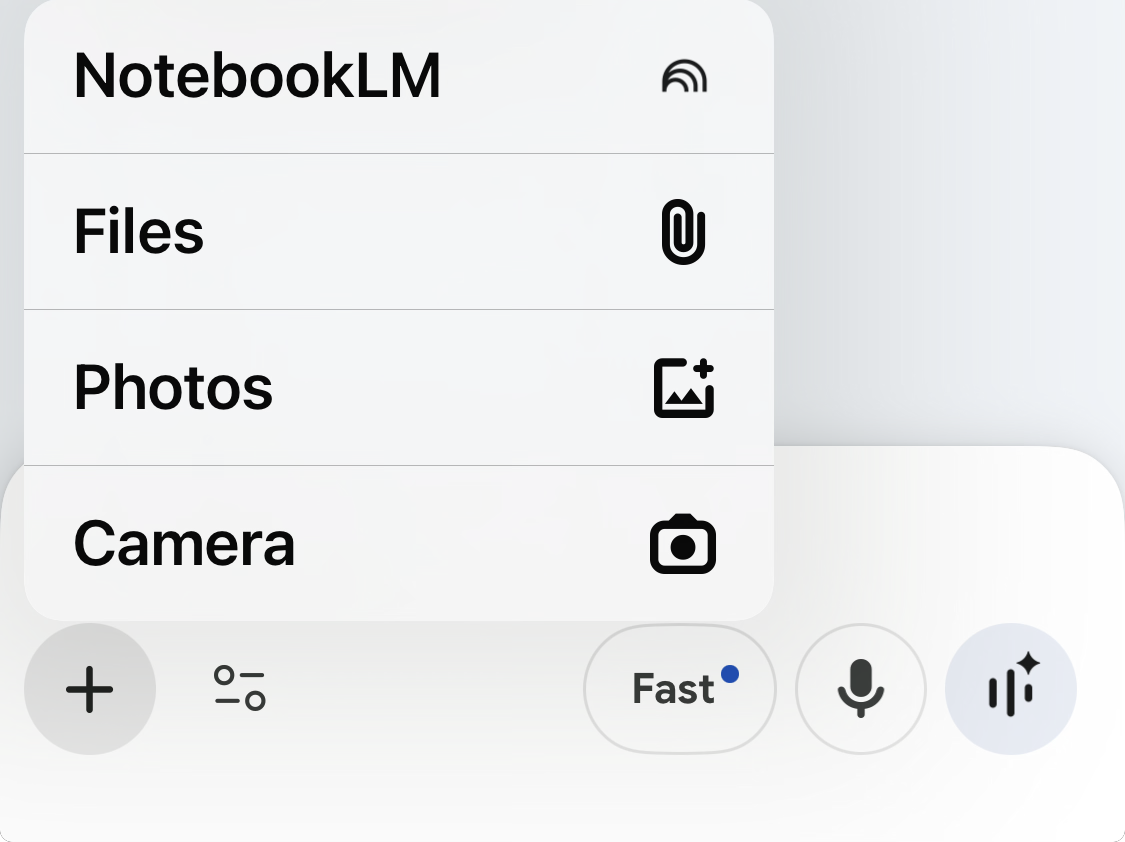
4.7 Deep Research (optional)
Gemini includes a feature called Deep Research that can browse many websites and create a multi-page report. This can be useful when you want a structured overview of a topic.
Create a simple beginner-friendly report on: [TOPIC].
Include: key terms explained, pros and cons, what to watch out for, and a short checklist of questions to ask before buying or deciding.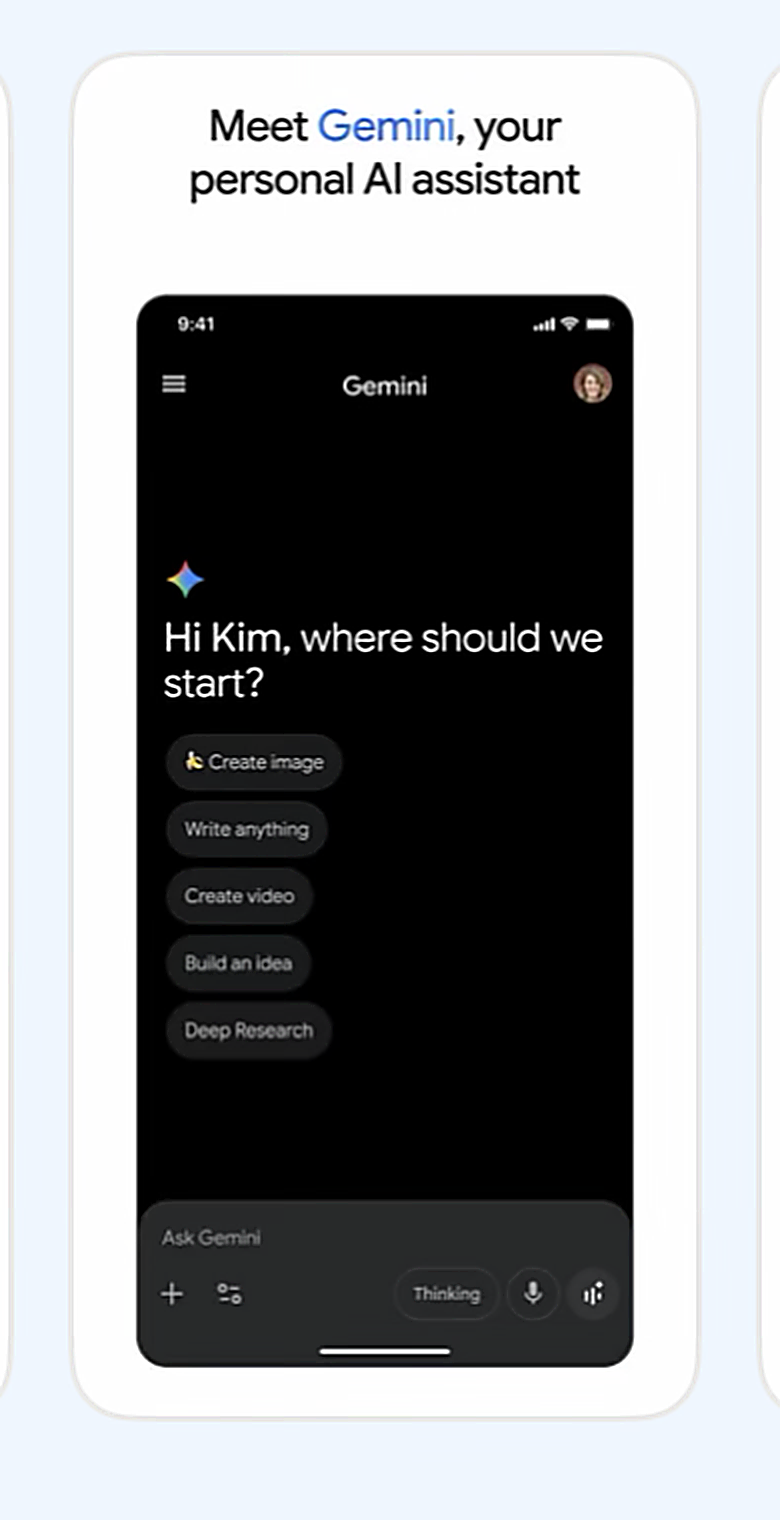
4.8 Gemini with Google apps (optional)
Depending on your plan and region, Gemini can connect with Google services like Gmail, Calendar, Maps, YouTube, and Photos to help you find information without switching apps.
4.9 Limits: what it means when Gemini says you have reached a limit
Gemini can have usage limits based on your plan. When you hit a limit, it usually means you need to wait for your capacity to refill, or you can upgrade to a plan with higher limits.
4.10 Practice tasks (Gemini)
These tasks build confidence without needing advanced features:
- Draft a polite email asking a business to confirm an appointment time.
- Explain a confusing letter in dot points (use a redacted excerpt).
- Create a weekly meal plan with simple ingredients.
- Ask for a travel day plan with rest breaks and a packing list.
- Ask for a scam check on a suspicious text (with personal info removed).
4.11 Screenshotss for Module 4