Accessibility and comfort tips (make AI easier to use)
This page is for anyone who wants bigger text, simpler steps, or less screen strain. Small comfort changes can make learning AI much easier.
Make text bigger (the number one improvement)
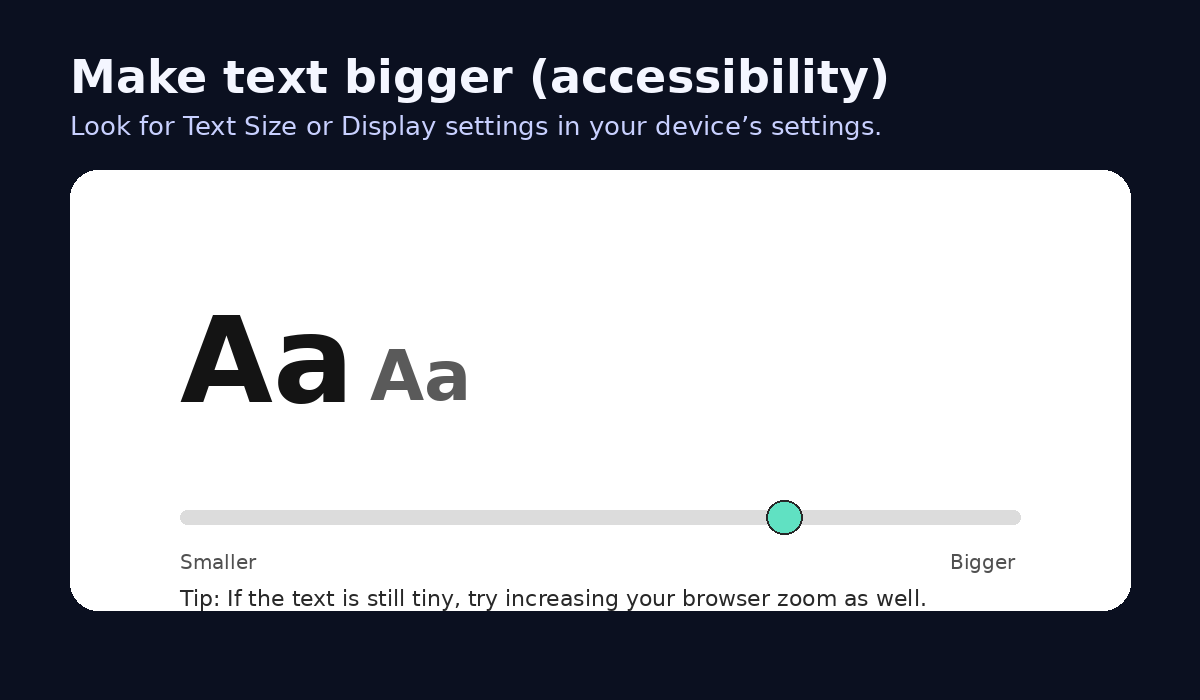
If the text is small, your brain works harder. Make the text bigger and everything becomes calmer.
- On a phone or tablet: use your Accessibility settings to increase text size.
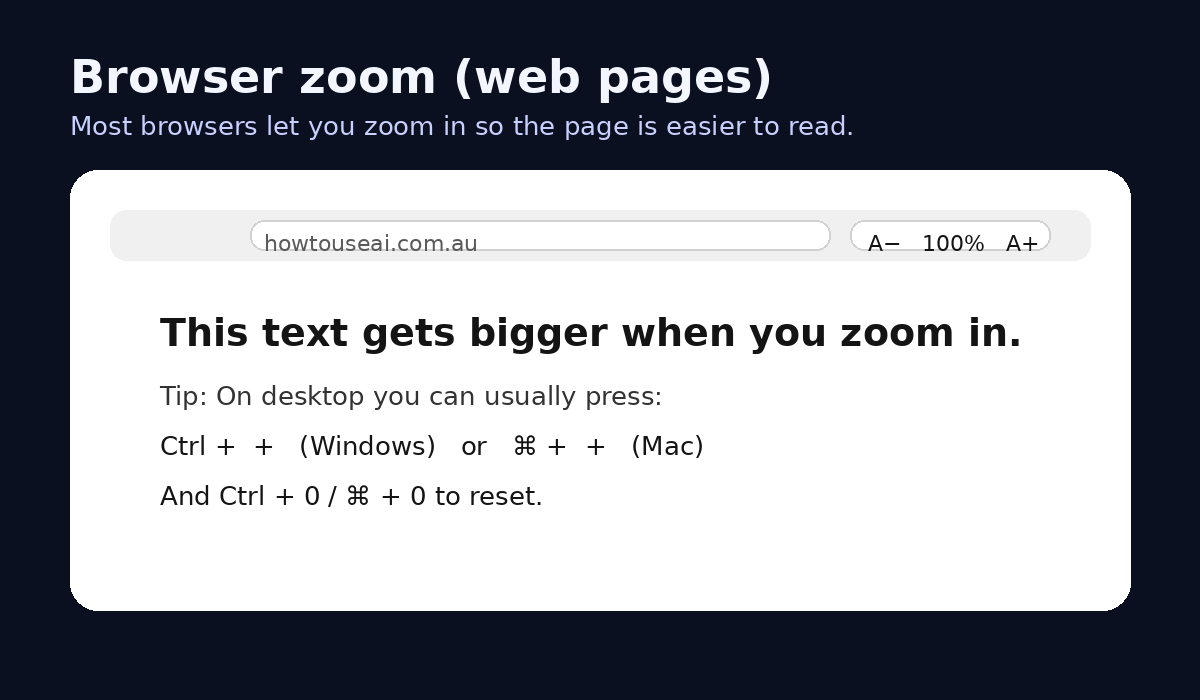
- On a computer browser: use zoom (for example, hold Control/Command and press + to zoom in).
- In many apps: look for a text size setting or display setting.
Beginner tip
If you are helping someone, set the text size first. Then teach AI. Not the other way around.
Use voice instead of typing
Both ChatGPT and Gemini can support voice input. Voice is often easier than typing for long messages.
- Speak in short sentences.
- Pause between ideas.
- If you forget something, add it after - the AI can handle follow-ups.
Reduce overwhelm (use smaller steps)
If a big task feels overwhelming, break it into small steps. You can even ask the AI to do this for you.
Small-steps prompt
Break this task into small steps. Give me step 1 only. Wait for me to say 'next' before continuing.

Task: [YOUR TASK]
Make the AI write in a calmer style
If answers are too long or too complicated, tell it exactly what you want:
- Use dot points only.
- Use simple language (no jargon).
- Keep it under 150 words.
- Explain it like I am a beginner.
Screen comfort
- Use dark mode if bright screens hurt your eyes.
- Take breaks (even 30 seconds looking away helps).
- Use a larger device (a tablet or laptop) for long reading tasks.
- If you wear reading glasses, use them - it is not cheating.
Accessibility screenshot placeholders